Switch Access
Screenshots
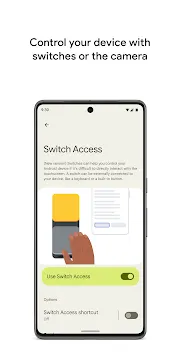
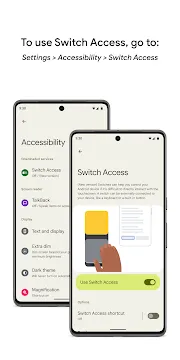
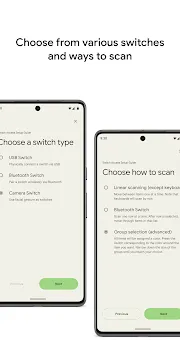
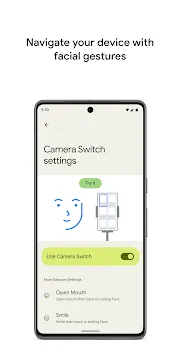
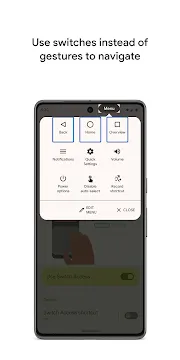
Switch Access provides a vital way for people with limited mobility to interact with their mobile devices. This accessibility tool replaces the need for traditional touchscreen gestures like swiping and tapping. Instead, it allows users to navigate the interface using one or more physical switches. These switches can be external buttons, keyboards, or even built-in hardware on the device itself. By scanning through items on the screen, the application makes technology inclusive for everyone.
The setup process focuses on personalization to meet specific physical needs. Users can define how the system moves from one interactive element to the next. This creates a sense of independence for those who find standard touch inputs difficult or impossible. The system works by highlighting items sequentially until the user selects the desired action. It transforms a complex interface into a manageable series of choices.
Understanding how Switch Access works
The core functionality of this tool relies on a process called scanning. When you activate Switch Access, the software begins to move a highlight across the screen. It identifies buttons, links, and text fields that you can interact with. You simply press your switch when the highlight reaches the item you want to use. This method ensures that every part of the operating system remains reachable without direct skin-to-screen contact.
There are different scanning methods to choose from based on your comfort level. Auto-scanning moves the highlight automatically at a set speed. Manual scanning requires a second switch to move the highlight, while the first switch performs the selection. Point scanning is another advanced feature that uses moving lines to pinpoint a specific horizontal and vertical location on the screen. This level of precision allows for complex tasks like drawing or playing games.
Types of switches used with Switch Access
You can connect various types of hardware to facilitate your navigation. Many people use external buttons connected via Bluetooth or a USB cable. These buttons can be placed near the hand, head, or feet depending on the user’s range of motion. The system is flexible enough to recognize almost any input device as a valid switch. This customization ensures that the physical setup remains comfortable for long-term use.
- External Switches: Commercial buttons designed specifically for accessibility.
- Keyboards: Using a standard keyboard where specific keys act as triggers.
- Built-in Buttons: Assigning volume buttons on the device to navigate the UI.
- Camera Switches: Using the front-facing camera to detect facial gestures like smiling or opening your mouth.
How to configure Switch Access settings
Setting up the tool requires a few steps within the accessibility menu. First, you must enable the service and grant the necessary permissions. The setup wizard then guides you through assigning your switches to specific actions. You can choose which button “Selects” and which one moves to the “Next” item. Testing these assignments immediately helps ensure the hardware is communicating correctly with the software.
Adjusting the scanning speed is crucial for a smooth experience. If the highlight moves too fast, you might miss your target. If it moves too slow, navigation becomes tedious. You can also customize the visual style of the highlight. Changing the color or thickness of the scanning box makes it easier to track for users with visual impairments. These small adjustments significantly improve the overall efficiency of the tool.
Improving navigation with Switch Access
Efficiency is a major goal for any accessibility software. To speed up interactions, the app offers “Group Selection.” Instead of scanning every single icon, the screen is divided into blocks. You select a block first, and then the system scans the individual items within that block. This reduces the number of switch presses needed to reach an app located at the bottom of the screen.
The tool also supports “Menu Actions” which appear after you select an item. This menu offers choices like scrolling, clicking, or dragging. It eliminates the need for complex multi-touch gestures. You can perform a “long press” or “swipe” simply by choosing it from the on-screen list. This logical approach simplifies the user journey and reduces physical fatigue.
Troubleshooting Switch Access connections
Sometimes hardware may fail to respond as expected. If your external switch is not working, check the Bluetooth connection first. Ensure the battery in the peripheral is charged. If the scanning stops unexpectedly, look for an app that might be blocking the accessibility layer. Restarting the device often clears minor software glitches that interfere with switch detection.
Another common issue involves the camera switch feature. This requires good lighting to track facial movements accurately. If you are in a dark room, the camera may struggle to see your gestures. Adjusting the sensitivity settings can help the software recognize smaller movements. Always ensure that the device is positioned securely on a mount to keep the camera angle consistent throughout your session.
The impact of Switch Access on independence
Providing a reliable way to communicate is the ultimate purpose of this technology. Users can send text messages, browse the internet, and use social media without assistance. It removes the barriers that often isolate people with motor disabilities. The ability to control a smartphone or tablet opens up educational and professional opportunities. It empowers individuals to manage their daily lives with privacy and dignity.
The software continues to evolve with better gesture recognition and faster scanning algorithms. Developers prioritize feedback from the accessibility community to refine the interface. This collaborative effort ensures the tool remains relevant as mobile operating systems change. By keeping the design simple and the logic consistent, it remains a gold standard for mobile inclusion.
Conclusion
Switch Access is a transformative tool that prioritizes human connection and digital equality. It proves that physical limitations should not prevent anyone from using modern technology. By converting touch-based interfaces into switch-friendly environments, it opens doors for millions of users. The system is easy to customize, highly responsive, and supports a wide array of hardware. It fosters independence by allowing users to navigate their digital world on their own terms. Whether through a simple button or a facial gesture, this application ensures that no one is left behind in a screen-centric world.